How to Reuse an Old Router as a Wired Access Point Before Buying Mesh Wi-Fi
Home Networking
Quick Summary
A spare router can often become a wired wireless access point: the main ISP router keeps handling the internet connection, firewall, DHCP addresses and routing, while the old unit provides Wi-Fi in another part of the home. The key word is wired. Connect the two locations by Ethernet, use the old router’s proper access-point mode if it has one, and avoid leaving two devices both trying to run the network.
This is a good diagnostic project before buying mesh Wi-Fi. If one cable and one carefully placed access point transform the weak room, you have proved that coverage—not broadband speed—is the problem. You may decide the reused router is good enough, buy a modern dedicated access point later, or choose mesh with wired backhaul. If the old router lacks current security, crashes under load or cannot deliver the speed you need, retire it rather than turning nostalgia into infrastructure.
Why this is worth trying now
Home-networking marketing is currently moving at a ridiculous pace. The first Wi-Fi 8 router announcements are arriving before most households have filled the home with Wi-Fi 7 devices, while September broadband deals continue to push faster full-fibre packages. At the same time, Ofcom’s practical advice still begins with placement and identifying where Wi-Fi performance is actually being lost. A faster package or newer logo cannot make a radio signal ignore brick, foil-backed insulation, awkward extensions or a router imprisoned under the stairs.
Community home-network questions repeatedly come back to the same choice: should a weak room be served by mesh, a wireless extender or a wired access point? Where Ethernet is available, a wired access point is usually the cleanest experiment because it removes wireless backhaul from the equation. Reusing an old router lets a beginner test that design with equipment already in the cupboard.
This article is not an argument that old equipment is always better. It is a method for learning what the house needs before buying. A successful trial can save money and reduce electronic waste. A failed trial can still be useful because it proves that the old radio, processor or firmware is the limit rather than the cable route or access-point idea.
First decide whether the old router is safe enough to reuse
Do not begin with the configuration screen. Begin with the label, manufacturer support page and power supply. Find the exact model and hardware revision; routers sold under one familiar name can contain different chipsets and receive different firmware. Check whether the final firmware is still available and whether the device supports WPA2-AES at minimum. WPA3 is preferable for a new purchase, but a WPA2 access point may still be acceptable for a short controlled test on ordinary home devices if the firmware is not known to be dangerously obsolete.
Reject the router if it only offers WEP, WPA, TKIP or a mixed security mode that forces weak encryption. Reject it if the admin page is exposed with a default password you cannot change, the manufacturer has abandoned a serious published vulnerability, or the unit reboots, overheats or smells electrically unhappy. Bulging power supplies, brittle cables and mysterious buzzing are not charming signs of vintage character.
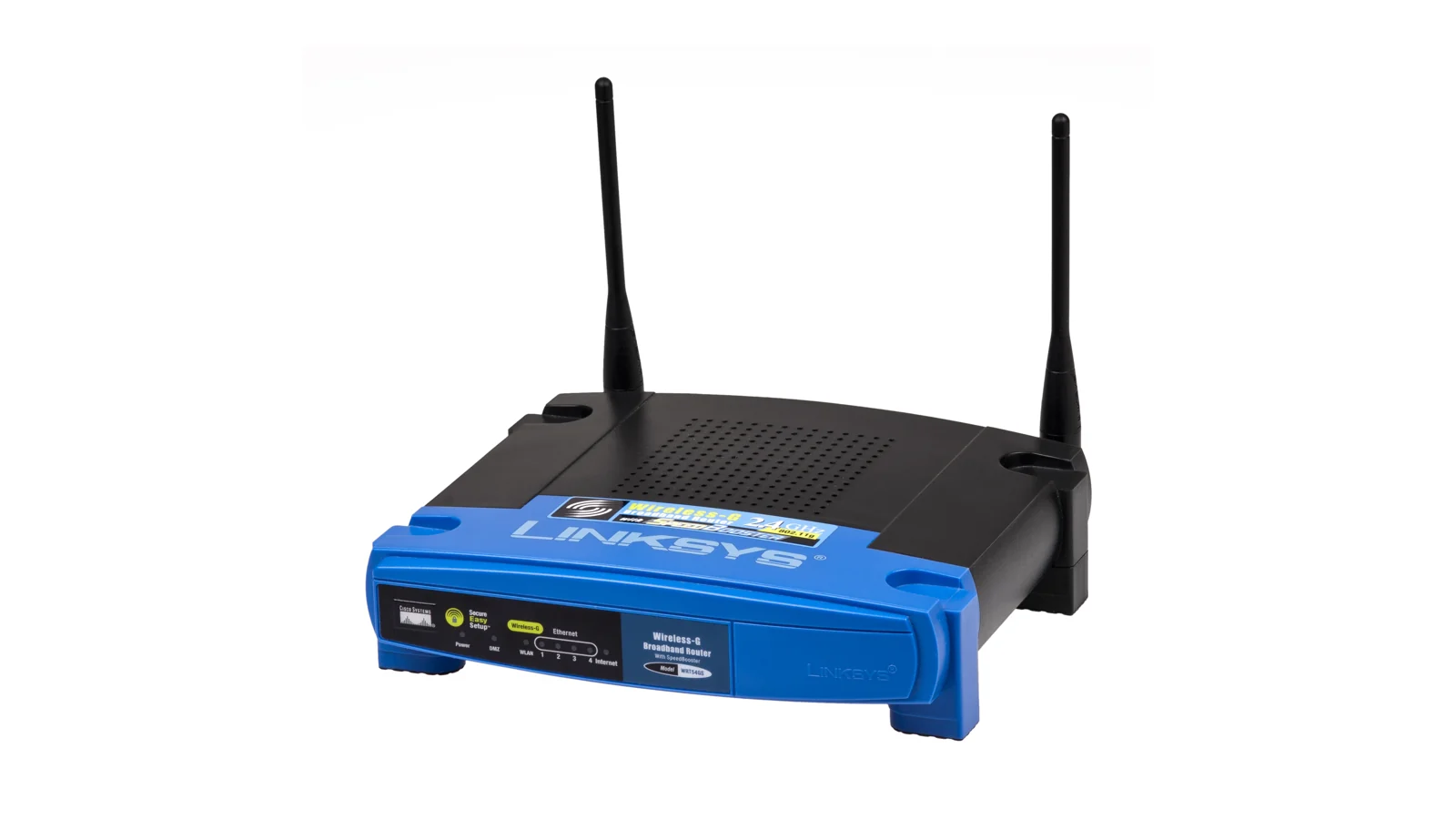
Also set a realistic performance target. An old 2.4GHz-only Wireless-G router may be useful for proving that a cable reaches the location, but it is not a sensible permanent access point for modern calls, streaming and downloads. A dual-band Wi-Fi 5 router with gigabit Ethernet may still be useful in a spare room or workshop. A model with only 100Mbps Ethernet ports can still handle browsing, smart devices and many video streams, but it will cap faster full-fibre performance.
Understand the finished layout
The main router remains the boss. It connects to the broadband line or full-fibre ONT, provides the firewall, hands out local IP addresses through DHCP and routes traffic between the home and internet. The reused router becomes a subordinate network bridge: its Wi-Fi and LAN ports join devices to the existing home network.
The physical path should look like this: broadband or ONT to the main router, then a LAN port on the main router to Ethernet, then Ethernet to the old router in the weak area. In proper access-point mode, the old unit will normally use one specified Ethernet port—sometimes WAN, sometimes LAN—according to its manual. In a manual conversion without a dedicated mode, the link is usually LAN-to-LAN and the old router’s WAN port remains unused.
This distinction prevents double NAT. If you connect the old router as though it were another internet router, it may create a second private network behind the first one. Normal browsing can still appear to work, which makes the mistake easy to miss, but casting, gaming, port forwarding, device discovery, printers and smart-home control can become needlessly complicated. One home usually needs one device acting as the router.
Prove the cable route before changing settings
Run a temporary Ethernet cable from the main router to the intended access-point location. For the experiment, tidy aesthetics can wait. Keep the cable away from trip routes, doors, heat and anything likely to crush it. If the route crosses a hallway, test briefly while you are present and remove it afterwards. Do not hide an ordinary patch lead inside walls or under permanent floor coverings unless its construction and installation are suitable.
A direct cable test matters because it separates the access-point idea from building work. Plug a laptop into the far end, switch off the laptop’s Wi-Fi and confirm that it receives an address from the main router and reaches the internet. Run a speed test and a few real tasks such as a video call, cloud upload or local file transfer. If the wired connection is unstable, solve that before involving the old router.
A flat 5m Cat 6 Ethernet cable for a temporary test can be useful where the route follows skirting or a desk edge. It is a contextual option rather than a requirement: use any sound, correctly terminated cable you already own. The linked listing passed the canonical DigiTech parser check with a 4.6-star rating, add-to-basket availability, no low-stock warning and Amazon as the dispatch merchant at the time of review.
Use proper access-point mode when available
Connect a laptop directly to the old router while it is disconnected from the main network. Factory-reset it if you do not trust the old configuration, then follow the manufacturer’s documented login method. Change the administrator password immediately and install the latest supported firmware before exposing it to normal household traffic.
Look for a setting named Access Point Mode, AP Mode, Bridge Mode or sometimes Wireless Access Point. Do not assume “wireless bridge” means the same thing; on some products that mode connects the router wirelessly to another network, which is not the wired design described here. Read the help text and confirm that routing, NAT and DHCP will be disabled.
When access-point mode is enabled, the device may ask whether it should obtain its management address automatically or use a fixed address. Automatic addressing is easier, but write down the address shown in the main router’s client list so you can find the admin page later. A reserved address on the main router is even better: it keeps management predictable without risking a collision.
Follow the manual for the uplink port. Some routers repurpose the WAN socket in access-point mode; others expect a LAN socket. Connect the main router only after the mode change has completed and the old device has rebooted.
Manual conversion when there is no AP mode
A router without a dedicated access-point setting can often be converted manually, but the interface names vary. Perform the work while connected directly to the old router and while it remains isolated from the main network.
- Find the main router’s local network. Common examples are 192.168.0.x or 192.168.1.x. Note the main router’s address and DHCP range.
- Assign the old router a management address. Put it in the same subnet but outside the automatic DHCP pool. If the main router is 192.168.1.1 and hands out 192.168.1.100 to 192.168.1.200, the old unit might use 192.168.1.2—provided nothing else uses it.
- Disable DHCP on the old router. Only the main router should issue addresses.
- Disable routing extras where possible. Turn off NAT, UPnP, parental controls, firewall features and guest-network isolation on the old device if they assume it is the internet gateway.
- Configure Wi-Fi security. Use WPA2-AES or better, a strong passphrase and sensible channel settings.
- Connect LAN to LAN. Leave the old router’s WAN port empty unless the manufacturer explicitly documents another design.
After changing the old router’s management address, the original admin address will stop responding. That is expected. Reconnect through the new address after attaching it to the main network. Record the final address on a label underneath the unit or in a home-network note. Future you deserves better than trying every private subnet during an outage.
Choose the Wi-Fi name deliberately
You can give the access point the same network name and passphrase as the main router, or use a different name during testing. A different name is clearer initially because you can prove which radio the phone or laptop is using. Names such as Home-Test-Upstairs are ugly but informative.
Once the placement and performance are proven, matching the main network name and security can make everyday use simpler. Devices may move between the two radios, but consumer clients decide when to roam. Two unrelated routers do not automatically provide the coordinated steering of a modern mesh system. A phone may cling to the weaker access point longer than you would like, especially if the signal is still barely usable.
Reduce overlap by choosing sensible channels. On 2.4GHz in the UK, use 20MHz channel width and normally choose among channels 1, 6 and 11 after checking local congestion. Put the main router and access point on different non-overlapping channels. On 5GHz, automatic selection may work well, but confirm that both units do not constantly choose the same busy channel. Avoid turning transmit power to maximum by reflex; too much overlap can make roaming worse.
Place the access point where devices need it—not where it is easiest to hide
A wired access point does not need to sit halfway back to the main router because its backhaul is the cable. Place it near the devices or room that need coverage, while keeping some distance from large metal objects, televisions, radiators, thick masonry corners and piles of power supplies. Raise it from the floor and leave ventilation space.
If the target is an upstairs office, put the access point in the office or nearby landing rather than directly above the main router. If the target is a garden room, placing it at the rear of the house may help only if the remaining exterior wall is not hostile to radio. A detached outbuilding may need proper exterior-rated cabling, fibre or a point-to-point link installed safely rather than an indoor patch lead thrown through a window.
Remember that the access point also provides wired LAN ports. A desk, console, television or printer near the old router can connect directly, reducing Wi-Fi load. Do not use the repurposed WAN port unless the selected mode supports it as part of the LAN.
Run a proper before-and-after test
Measure in the same locations, with the same devices and roughly the same household load. Record signal strength if available, download, upload, idle latency and loaded latency. More importantly, test the activity that actually fails: a Teams call, console session, 4K stream, cloud backup or smart camera feed.
First test beside the main router to establish the broadband and device baseline. Then test the weak room using only the main router. Finally connect specifically to the new access point and repeat. A strong result is not merely a bigger download number. Look for steadier latency, fewer call glitches, faster page starts, reliable uploads and consistent performance over fifteen to thirty minutes.
Walk between the two areas while streaming audio or making a test call. If the device refuses to roam, briefly toggle Wi-Fi and see whether the nearby access point performs well. Poor automatic roaming does not mean the access point itself is bad; it means the two-router system may be less seamless than mesh. Decide whether that inconvenience matters in the way your household moves around.
Common mistakes and what they look like
| Symptom | Likely mistake | What to check |
|---|---|---|
| Devices get internet but cannot find printers or casting targets | Old router still creating a second network | Enable AP mode or disable DHCP/NAT and use LAN-to-LAN |
| Some devices receive strange addresses or lose internet randomly | Two DHCP servers are active | Disable DHCP on the old router |
| Admin page has disappeared | Management address changed or was assigned automatically | Check the main router’s client list and DHCP leases |
| Speed is stuck below about 100Mbps | Fast Ethernet port, damaged cable or old radio | Check port specification, negotiated link and cable |
| Phone stays attached to weak Wi-Fi | Poor roaming between independent routers | Reduce overlap, adjust power or use distinct names while testing |
| Access point works, then reboots under load | Ageing power supply, heat or failing hardware | Retire the unit; do not build around an unstable device |
When the reused router is good enough
Keep the setup if it is stable, securely configured, cool in normal use and fast enough for the room. A workshop that needs reliable music, instructions and smart-device control may not require the newest radio. A spare bedroom used occasionally for video calls may be perfectly served by a sound Wi-Fi 5 router acting as an access point.
Document the model, admin address, firmware version, Wi-Fi settings and cable route. Add the device to your normal maintenance checks. If firmware support has ended, isolate its role and plan a replacement rather than pretending the risk disappears because the box still has blinking lights.
Also consider energy use. An old router running continuously adds another power supply and several watts of background consumption. Measure it if you already own a plug-in power meter. A modern efficient access point may eventually pay back part of its cost while offering better security and roaming.
When mesh or a modern access point is the better answer
Choose a modern dedicated access point when you have Ethernet and want current security, reliable updates, mounting options, central management or PoE power. It performs the exact job without carrying old routing features you no longer need. For several wired coverage points, a coordinated access-point platform can offer better roaming and visibility than a pile of unrelated routers.
Choose mesh when running Ethernet is genuinely impractical, you need two or more coordinated nodes, household members move around during calls, or simple app management matters more than maximum control. Mesh can also be excellent with wired backhaul: the nodes coordinate as one system while Ethernet carries the traffic between them.
Do not buy mesh solely because the broadband package is fast. Buy it because the layout, cable options, roaming requirement and device load justify it. The old-router experiment gives you evidence. If wired access-point performance is excellent but roaming is clumsy, wired-backhaul mesh is a strong candidate. If even the wired test is slow, investigate the cable, main router, broadband service or client device first.
Final checklist
- Identify the exact router model and hardware revision.
- Install the final supported firmware and change the administrator password.
- Reject obsolete security modes, unstable hardware and suspect power supplies.
- Test the Ethernet route with a laptop before configuring the access point.
- Use dedicated AP mode where available.
- If converting manually, use one DHCP server, one router and a LAN-to-LAN link.
- Give the access point a known management address.
- Start with a distinct Wi-Fi name so testing is unambiguous.
- Choose non-overlapping channels and avoid excessive radio overlap.
- Compare real tasks, latency and stability—not only one speed-test screenshot.
- Document the setup and decide whether the result is temporary or permanent.
- Replace the old router if security, reliability, speed or roaming falls short.
Related DigiTech guides
Final verdict
Reusing an old router as a wired access point is valuable because it turns a vague Wi-Fi complaint into a controlled experiment. It proves whether better radio placement and Ethernet backhaul solve the weak room without asking you to buy a complete system first.
Keep one main router in charge, disable competing network services, use secure firmware and test the result honestly. If the spare router delivers stable coverage, it has earned a second life. If it exposes old security, weak roaming or limited speed, retire it with useful evidence in hand. Either outcome is better than buying three shiny mesh nodes and discovering that the original problem was one cupboard, one wall and one cable you already owned.
Editorial notes
This utility-led Home Networking topic was selected after lightweight UK trend research across Wi-Fi 8 launch coverage, current Ofcom-linked Wi-Fi improvement advice, September full-fibre deal activity, community questions about access points versus mesh, autumn smart-home security coverage and Windows 11 update disruption. Router reuse offered the strongest combination of current upgrade pressure, practical beginner DIY value and a distinct angle from the previous day’s Smart Home DIY article.
The editorial rotation guard reported three product-led and five utility-led articles in the latest eight, so a product-led format was not mandatory. Home Networking was the least recently used site category and did not appear more than three times in the latest seven posts. One contextual Amazon UK link was included for a temporary Ethernet test after two HTTP parser attempts lacked direct merchant fields and a fresh local-CDP browser check passed the canonical parser.
Review freshness
Last reviewed: 28 September 2026
Update cadence: Review after major ISP-router, Wi-Fi security, access-point configuration or consumer mesh changes.